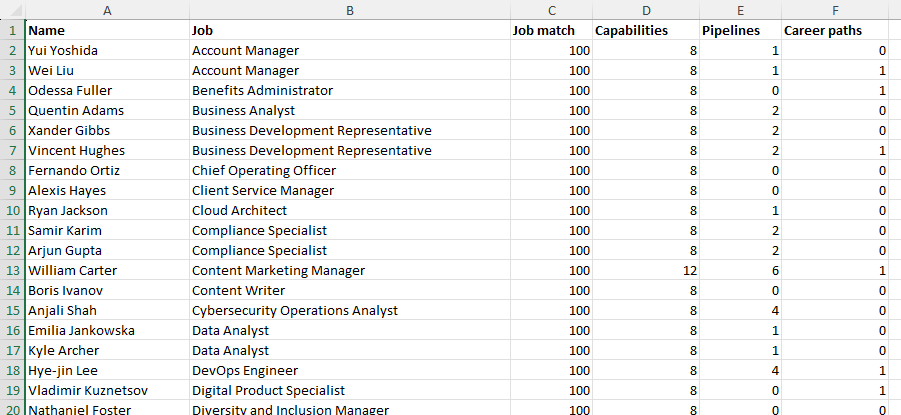
The People area gives HR teams a centralized view of active users and their talent information. Use People to understand how employees align with their jobs, check their capabilities, and access information about their reviews, career paths, and succession planning from one place.
Who can access People?
People is available from Talent > People when the People module is installed in your site and the Manage people permission is turned on in your permission set. What you can see within an user’s details also depends on the other Quinto features you have access to. For example, access to pipeline information is tied to the Manage pipelines permissions.
Find and understand your people
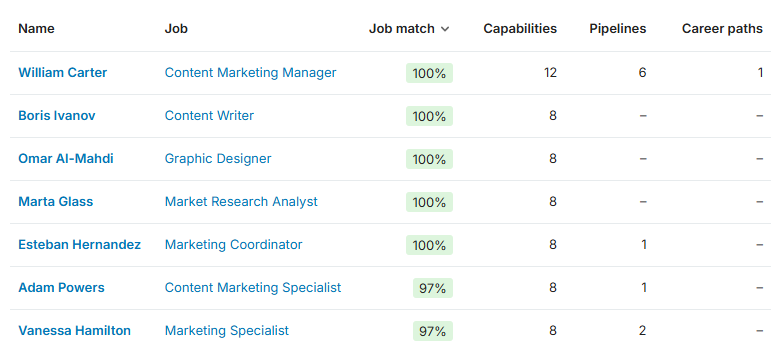
Go to Talent > People to see active users in your organization. You can sort the table, search by name, or filter by departments to narrow the list. The table brings together key talent information for each active user, including:
-
Job: The job associated to the user’s position. Click the name to view job match details.
-
Job match: How closely the user currently matches their job requirements.
-
Capabilities: The number of competencies and skills on the user’s profile.
-
Pipelines: The number of succession pipelines in which the user appears.
-
Career paths: The number of career paths associated with the user.
View a person's talent information
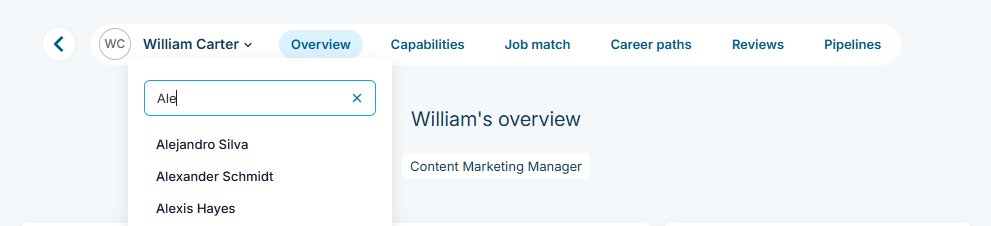
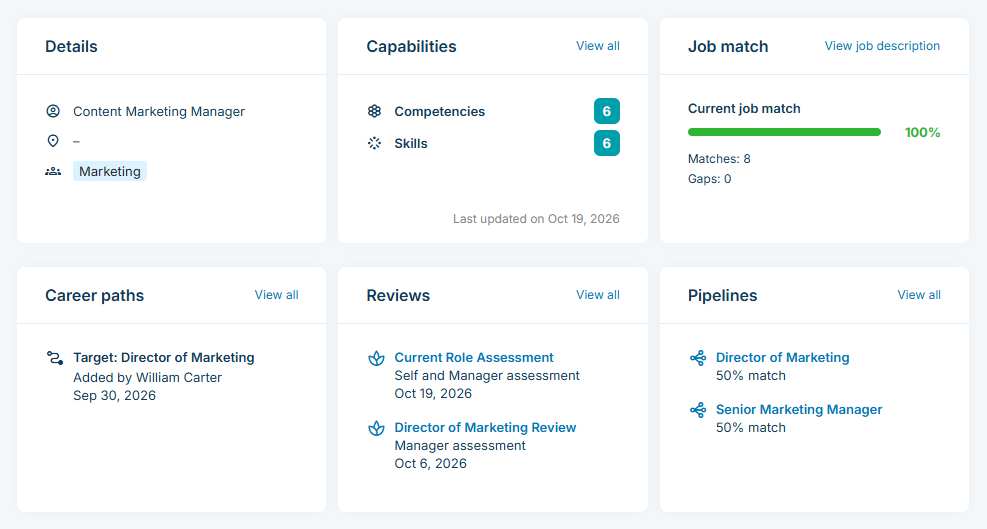
Click a person's name to open their details. Their overview brings together information from different areas of Quinto so you don't have to visit each feature individually. You can also use the user selector to move directly from one active user to another.
The information available depends on the features installed on your site and your permissions.
Reviews
If you have permission to access reviews, you can see the user’s two most recently completed reviews, including the review name, viewpoint, and completion date. Select a review to open its results, or choose View all to explore the person's complete review history.
Career paths
If you have permission to access career paths, you can see the user’s two most recently saved paths, including who added the path and when. Choose View all to see their paths in more detail.
Pipelines
If you have permission to manage pipelines, you can see the two pipelines where the user has the highest job match. Pipeline information includes the job, the person's readiness for the role, and their job match percentage. Choose View all to see all pipelines in which the person appears. From there you can review their match information and update their readiness for a role.
Export people data
You can export the People table to Excel. Click Actions and select Download table. When the export is ready, you'll receive an in-app notification and an email containing the download. The download link is available for 48 hours.