
Career paths help you see how different roles connect and how you can grow within the organization. Choosing or building a path lets you explore opportunities, see the requirements for roles you’re interested in, and plan your next steps. There are three different ways to create a path in Quinto depending on your site setup. No matter which option you use, you'll get a clear picture of where you want to go and how to get there.
Option 1. View defined paths
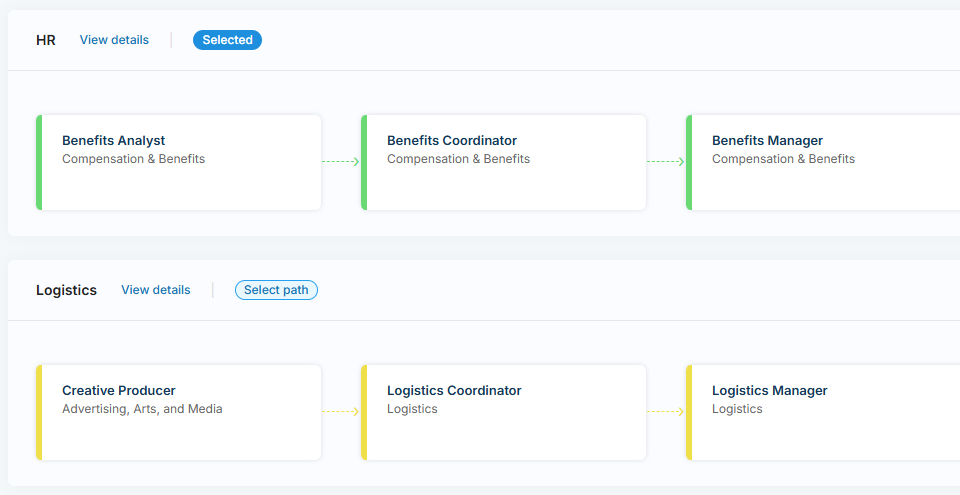
Defined paths are set up by your organization and outline common routes for specific areas or job families. Use this option if you prefer to follow a path that’s been mapped out and validated by HR. You can browse the jobs included and choose a path that aligns with your interests.
-
Click My profile in the top nav.
-
Click the Career paths tab.
-
Click View defined paths (or +Add paths > View defined paths).
-
Search for a specific path or job at the top of the page.
-
Filter paths by job group or by tag at the top of the page.
-
Click View details to see a detailed comparison of the jobs in a path.
-
Click a job title to see the requirements and how they compare to your profile.
-
-
Click Select path to save to your profile.
-
Pick a target role if the path includes roles beyond the one you’re aiming for.
-
Decide whether to share your path. Learn more
-
Click Select.
Option 2. Explore possibilities
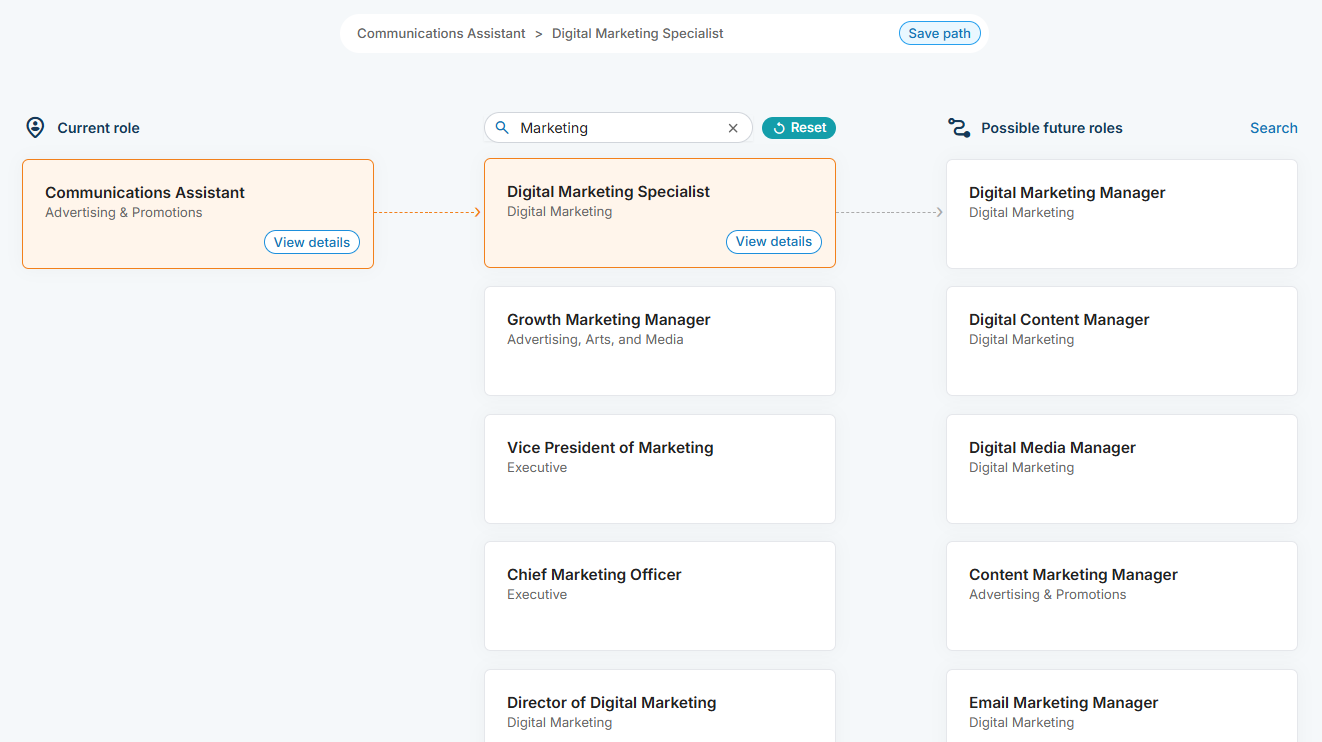
Exploring lets you browse all available jobs without limits. It’s a great way to discover opportunities you might not have otherwise considered. Quinto displays up to 20 jobs based on their relevance to your profile and current role. Once you select your next role, we provide another list of jobs in descending order of similarity to the job you selected. You can continue selecting jobs until you’ve found your target and built your own custom path.
-
Click My profile in the top nav.
-
Click the Career paths tab.
-
Click Explore possibilities (or +Add paths > Explore possibilities).
-
Set a current role as the starting point if you don’t have one and click Save.
-
Select a possible next role and as many possible future roles as you want.
-
Click Search at the top of a list to find a job that’s not suggested.
-
Click Reset at the top of a list to clear your selection for that list.
-
Click View details (or the Limited fit / Potential fit / Strong match label) in a job tile to see the requirements and how they compare to your profile.
-
-
Click Save path at the top of the page once complete.
-
Customize the name of your path.
-
Decide whether to share your path. Learn more
-
Click Save.
Option 3. Start with a target
If you already know the job you want to work toward, this option lets you begin with that target in mind. Quinto presents up to three unique paths to choose from. The sequence of roles is determined by their relevance to your current role and then to the previous step's role. If both your current and target role are included in a defined path, that path will be included as one of the options. Starting with a target helps you see which roles can lead there, so you can plan your path more strategically.
-
Click My profile in the top nav.
-
Click the Career paths tab.
-
Click Start with a target (or +Add paths > Start with a target).
-
Search for and select a job as your target role.
-
Set a current role as the starting point if you don’t have one and click Save.
-
Click View details to see a detailed comparison of the jobs in a path.
-
Click a job title to see the requirements and how they compare to your profile.
-
Click the X at the top of the page to enter a new target role.
-
-
Click Select path to save to your profile.
-
Customize the name of your path.
-
Decide whether to share your path. Learn more
-
Click Select.
Sharing a career path
Once you save a path, you’ll be prompted to decide whether to share it. Sharing a path sends an email to your manager with the path name and a link to view the path from their team page. This helps your manager understand the direction you’re interested in taking and makes it easier for them to support your career development.
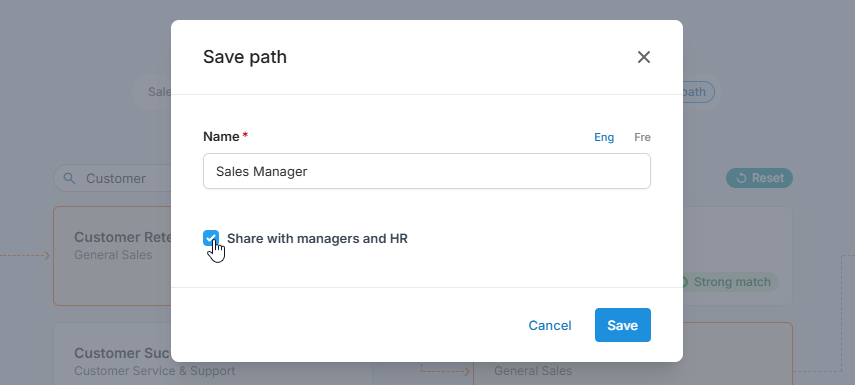
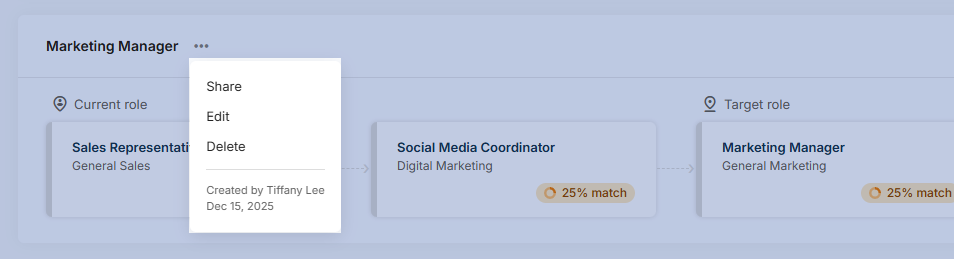
You can change your mind at any time. Click the three-dot icon next to the path name and select Share or Make private in the dropdown. Note that your manager won’t be notified when you make a shared path private.
Adding multiple career paths
You can save more than one career path to explore different directions at the same time. For example, you might keep a defined path as a reference while creating custom paths to try other possibilities. Creating multiple paths also gives you the opportunity to review them with your manager and decide together which path makes the most sense for your development.
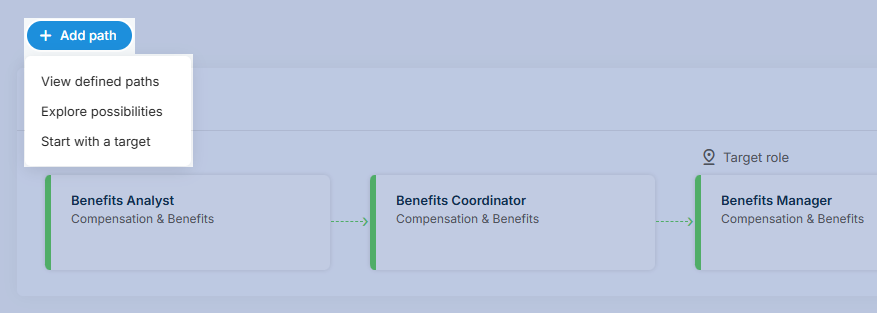
Once your first path is saved, you'll still see an +Add path button at the top left of the career paths page, letting you create additional paths.
Renaming a career path
Once a path is saved, you can’t change the selected jobs. However, you can always update the path name, unless its a defined path. Click the three-dot icon next to the path name and select Edit. Enter a new name for your path and click Save.
Deleting a career path
If a path is no longer relevant or you’d like to start fresh, you can delete it from your profile. Click the three-dot icon next to the path name and select Delete (or Remove if it's a defined path) in the dropdown. Paths you’ve created yourself can’t be restored, so be sure you no longer need the path before deleting.